
Filmora: AI Video Editor&Maker
Wondershare FilmoraVideo Players & Editors
4.023.26K Reviews
- Version
- 15.7.70
- Installs
- 100.00M
- Age Rating
- Everyone
Screenshots
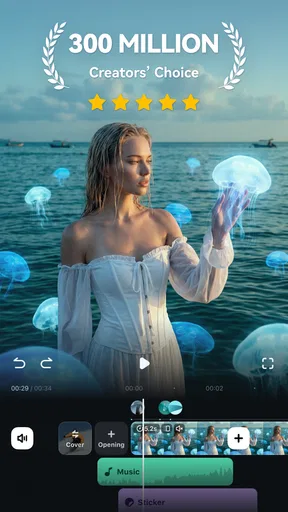
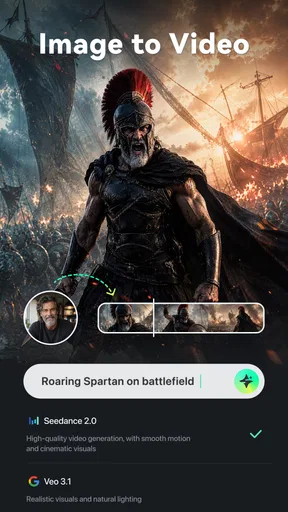
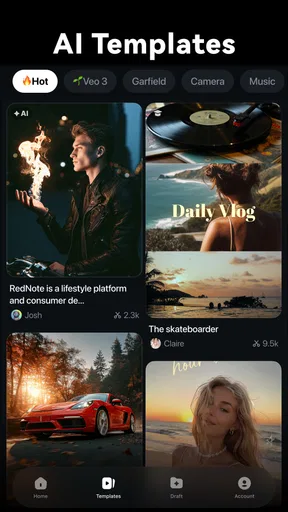
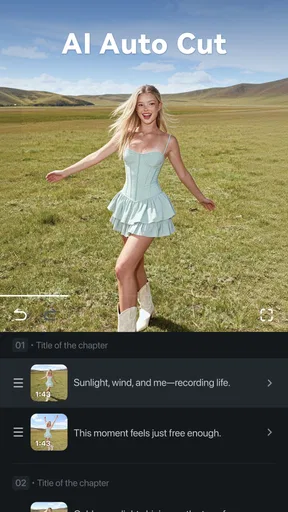
Our Review of Filmora: AI Video Editor&Maker
 Analysis by Appyee
I usually notice the same snag when someone opens a mobile editor for the first time: the tools look simple, but it is not immediately obvious which choices will make a clip feel finished rather than merely decorated. Filmora is aimed at that gap. It brings familiar editing controls together with AI-assisted options, so I can start with a quick trim and then decide whether a caption, music change, or visual effect actually helps the story.
That mix makes Filmora: AI Video Editor & Maker appealing for casual projects, but it also calls for a little restraint. Effects can make a rough clip more engaging; stacking too many can distract from the people or moments in it. I get the best results when I settle the clip order and basic timing first, then add only the finishing touches the video needs.
Where a mobile editing session can get stuck
One common point of friction is choosing a starting workflow. A short social clip, a family montage, and a video with spoken instructions all need different pacing. Rather than reaching for an effect immediately, I first decide what the viewer should notice and remove pauses or repeated moments that do not support that purpose. This simple step often matters more than a filter.
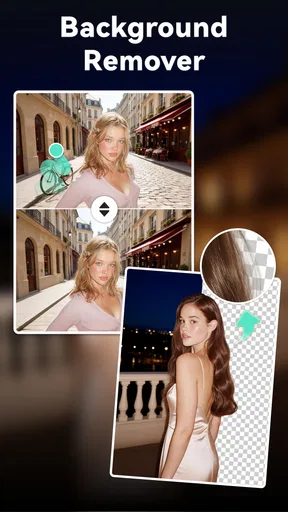
AI options can also invite experimentation before the edit has a clear shape. I treat them as shortcuts for particular tasks, not as a replacement for editorial choices. If a background removal looks unnatural around hair or moving objects, for example, I would rather keep the original setting or use a simpler crop than force an effect that draws attention to its flaws.
Small setup checks that save time
Before I begin, I make sure the source clips are the ones I actually want to use and that I can find them easily on my device. I also think about the final destination: a vertical clip for a phone feed is framed differently from a landscape video meant for a wider screen. Choosing the intended shape early reduces the chance that an important face or detail gets pushed out of view later.
If the app seems slow or an edit does not behave as expected, I avoid changing several things at once. I close other demanding apps, reopen the project, and test one small edit before continuing. That makes it easier to tell whether the issue was temporary device strain or a particular clip or effect. Keeping the original footage untouched is a useful safety net while I experiment.
Getting Started with Filmora
First things first, downloading Filmora: AI Video Editor & Maker is a breeze. It's available on both Android and iOS, so no worries about compatibility. Once you’ve got it installed, you’re greeted with a slick interface that’s both inviting and intuitive. No need to be a tech wizard to find your way around.
The app kicks things off with a handy tutorial, guiding you through the basics. This is great because it sets a solid foundation, especially if you’re new to video editing. And if you're like me, you’ll appreciate the ability to skip it and dive right into the action.
Features Galore
Now, let’s talk features. Filmora doesn’t skimp here. You’ve got your usual suspects like trimming, cutting, and splitting, but what really stands out are the AI-powered tools. The AI background removal is a lifesaver for those times when you want to swap out that messy room for a serene beach scene.
The app also comes with a plethora of filters and effects that can transform even the most mundane clips into something cinematic. And the best part? It’s all super easy to apply. Just tap, choose, and watch the magic happen.
Music and Audio Editing
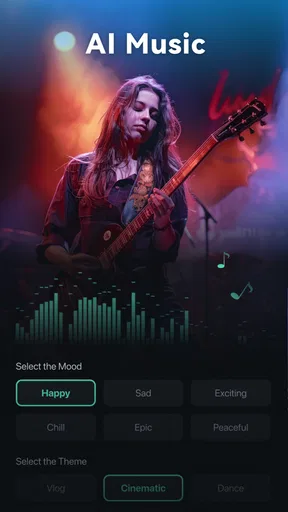
What’s a great video without some killer tunes? Filmora offers an impressive music library, and integrating tracks into your videos is seamless. You can adjust volumes, add voiceovers, and even tweak audio tracks to make sure everything sounds just right.
For those moments when you need that perfect sound effect, the app’s got you covered, offering a wide range of options. And if you’re worried about copyright issues, relax. Filmora provides royalty-free tracks that keep your content safe and sound.
Exporting and Sharing Your Creations
Once you’ve crafted a masterpiece, sharing it is a cinch. Filmora supports multiple export formats and resolutions, ensuring your video looks great on any platform. Whether you’re posting to social media or sending it to friends, the app makes it simple.
And let’s not forget about the direct sharing options. You can post your videos straight to YouTube, Facebook, and other social platforms without ever leaving the app. This is perfect for those who love to share their creations with the world.
Why You’ll Love It
Alright, so why should you download Filmora? Simply put, it’s a robust, user-friendly editor packed with features that cater to both beginners and pros. The AI tools are especially impressive, bringing a level of sophistication to your videos without the steep learning curve.
The interface is clean, the tools are responsive, and the results are nothing short of spectacular. Plus, having everything you need on your phone or tablet means you can edit on the go. No need for bulky equipment or complicated software.
In short, if you’re looking for a powerful, versatile video editor that won’t break the bank, Filmora is definitely worth a look. It’s a fantastic tool for unleashing your creativity and making your videos truly shine.
Final Thoughts
All in all, Filmora: AI Video Editor & Maker is a standout app in the world of mobile video editing. Its blend of powerful features and user-friendly design makes it a top choice for anyone looking to enhance their video content. So go ahead, give it a try, and see what amazing creations you can come up with!
A practical workflow for everyday footage
For a realistic example, imagine I have a handful of clips from a weekend outing and want to send a compact recap to family. I would pick the strongest moments, trim the starts and endings, and put them in an order that makes sense before choosing music. Then I would watch the edit once with the sound on and once with it muted: the first check catches audio that competes with conversation, while the second reveals whether the visuals alone still tell a coherent story.
This order is useful because mobile editing encourages quick decisions. Adding a transition to every cut may feel polished while editing, but it can make a short montage tiring to watch. I use effects selectively, perhaps to mark a change of scene, and leave straightforward cuts elsewhere. For a talking clip, I prioritize clear speech and readable framing over decorative overlays.
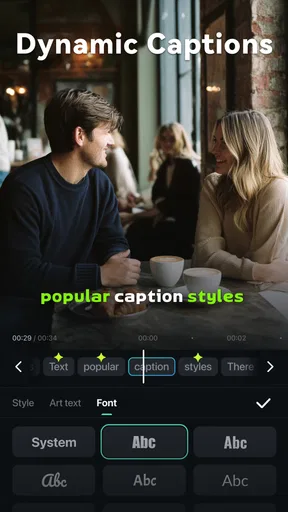
Another practical tip is to treat captions and text as part of composition, not an afterthought. I check that text does not cover a face, sign, or other detail that explains the shot. If an AI-generated element or caption needs repeated correction, I simplify the edit rather than spending longer repairing a feature than the finished video warrants.
Who will get the most from it
I think the strongest fit is someone who wants to make short, presentable videos on a phone without learning a full desktop editing workflow. A beginner can lean on the approachable controls, while a more experienced mobile editor can use the combination of cuts, audio adjustments, effects, and AI-assisted tools to move quickly through routine projects. It is also handy when the footage is already on the device and the goal is to finish and share without moving files between several programs.
There is a useful middle ground here: people who have outgrown a basic one-tap montage maker but do not need a detailed professional timeline may appreciate having more control without turning a casual edit into a large project. A small business owner preparing a simple product clip, a student assembling a presentation video, or a parent making a family recap could all benefit, provided they are comfortable reviewing the result carefully rather than accepting every automatic choice.
I would steer away from it if the job depends on highly precise, frame-by-frame control, complex audio mixing, or a long-form project that is easier to manage on a larger screen. A desktop editor is usually the better place for that work. I would also skip a mobile effects-heavy workflow if I needed exact brand consistency across many videos; a repeatable template and a more controlled production setup may matter more than quick creative options.
How it compares with other mobile editors
Compared with a basic editor that mainly trims clips and joins them, Filmora offers a broader set of creative tools and AI-assisted options. That can reduce the number of separate apps I need for a casual project. The trade-off is choice: a simple cutter can feel faster when all I want is to remove a pause and send the clip, while a more capable editor asks me to make more decisions about effects, sound, and finish.
Against professional desktop software, the appeal is convenience rather than depth. A phone-based workflow is easier to start during a commute or between errands, but the small screen makes detailed timing and precise adjustments less comfortable. I see Filmora as a practical editor for quick-to-medium projects, not a substitute for every stage of a more demanding production.
Cost, compatibility, and a sensible trial
Filmora is free to install, with in-app purchases ranging from about fifty cents to around one hundred twenty dollars per item. I would try the workflow on a small, low-stakes project before paying for anything. That lets me see whether the tools I actually use justify a purchase, rather than assuming every available effect or option is essential. The app is rated for Everyone, and its current version is 15.2.01; it requires Android 7.0 or later on Android devices.
Wondershare Filmora is the developer, and the app has been available since December 14, 2015. Its reach is substantial, with over one hundred million installs, around 1.1 million ratings, and an average rating of 4.0. Those figures suggest a widely used editor, but they do not tell me whether it suits a particular device or editing style. My own deciding test would be whether a short project feels manageable from import through export.
If an export or preview feels disappointing, I first check the project itself: are the source clips clear, is the framing sensible, and is the audio balanced? I then try a simpler version without several effects layered together. When the result improves, I have a useful clue that the edit was overloaded rather than that every tool was failing. If a problem persists, reopening the project and testing a smaller change is a calmer next step than rebuilding the whole video immediately.
Where I land
Filmora earns a place on my shortlist for people who want a flexible phone editor with approachable controls and room to experiment. Its best quality is the way it can take a basic collection of clips and help shape them into something intentional without demanding a desktop setup. The main caution is to keep the project focused: more tools do not automatically mean a better video, and editing on a small screen has limits.
If I were recommending it to a friend, I would say to start with one short video, make the cuts and audio work first, and add AI tools or effects only when they solve a clear problem. That approach gives a fair sense of whether the app fits your routine and keeps the learning curve comfortable. For quick personal edits and social clips, it is worth trying; for intricate, highly controlled production, I would choose a more specialized workflow.
Privacy and Permissions
See what permissions an app requests and how it handles your data.
- Calendar
- read calendar events plus confidential information, add or modify calendar events and send email to guests without owners' knowledge
- Phone
- read phone status and identity
- Photos/Media/Files
- read the contents of your USB storage, modify or delete the contents of your USB storage
- Storage
- read the contents of your USB storage, modify or delete the contents of your USB storage
- Camera
- take pictures and videos
- Microphone
- record audio
- Wi-Fi connection information
- view Wi-Fi connections
- Device ID & call information
- read phone status and identity
- Other
- view network connections, change network connectivity, control flashlight, full network access, close other apps, run at startup, draw over other apps, control vibration, prevent device from sleeping, modify system settings, install shortcuts, uninstall shortcuts
Verdict
Strengths of Filmora: AI Video Editor&Maker
- User-friendly interface for quick editing.
- Rich library of transitions and effects.
- AI tools simplify complex edits.
- Supports a wide range of formats.
- Regular updates with new features.
Limitations of Filmora: AI Video Editor&Maker
- Occasional lag on low-end devices.
- Some features require in-app purchases.
- Limited functionality in free version.
- High export times for large files.
- No direct integration with cloud services.
Other Releases by Wondershare Filmora
View All
Filmora Lite: AI Video Creator
Video Players & Editors3.9
Similar Picks in This Category
View All
Google TV
Google LLC3.9

iTunes
Apple4.7

YouTube
Google LLC3.8

MX Player
Amazon Mobile LLC4.2

CapCut - Video Editor
Bytedance Pte. Ltd.3.5

PLAYit-All in One Video Player
PLAYIT TECHNOLOGY PTE. LTD.4.5
Frequently Asked Questions
What features does Filmora: AI Video Editor&Maker offer?
Filmora: AI Video Editor&Maker provides a comprehensive suite of tools for editing videos, including AI-driven features like auto-reframe, motion tracking, and background removal. Users can also access a vast library of effects, filters, and transitions. Additionally, the app offers audio editing capabilities and allows for easy integration with social media platforms for quick sharing.
Is Filmora suitable for beginners?
Yes, Filmora is designed with beginners in mind. The interface is intuitive, and the app offers tutorials and guides to help new users navigate its features. The drag-and-drop functionality makes it easy to add and edit elements, while the AI tools simplify complex editing tasks, making it accessible for users with limited editing experience.
Can Filmora handle 4K video editing?
Filmora supports 4K video editing, allowing users to create high-resolution projects suitable for professional use. The app’s performance is optimized for handling large files, ensuring smooth editing without compromising on quality. Users can export their finished projects in 4K, making it ideal for those looking to produce high-quality content.
What are the system requirements for Filmora on mobile devices?
Filmora is compatible with most modern Android and iOS devices. However, for optimal performance, it is recommended to use a device with at least 4GB of RAM and a multi-core processor. The app requires a stable internet connection for downloading additional resources and updates. Users should ensure they have sufficient storage space available for their projects.
Does Filmora offer a free version, and what are the limitations?
Filmora provides a free version that includes basic editing tools and features. However, this version may apply a watermark to exported videos. To access advanced features, effects, and remove the watermark, users can purchase a subscription or a one-time license. The premium version unlocks the full potential of the app, offering an extensive range of tools for professional editing.
